
A Smarter Setup Starts with the Right Choices
If you have ever sat down at your desk and spent the first five minutes untangling cables, hunting for a charger, and adjusting your chair because your neck already aches — you are not alone. Most people put up with a chaotic workspace for far longer than they should, not because they lack the time to fix it, but because it is not obvious where to start. The good news is that the answer usually comes down to a handful of well-chosen accessories and a few practical principles.
When I first started looking into desk organization ideas properly, I expected to find advice about tidying trays and labelling drawers. What I found instead was a much more interesting topic: how the physical setup of your workspace directly shapes how well you think, how long you can concentrate, and how your body feels at the end of the day. A desk that is organized is not just easier on the eyes — it is easier on the brain, the back, and the wrists too.
This article covers the key areas to consider: smarter charging, ergonomic input devices, better video call setups, and the physical arrangement of everything on your surface. It is written for people who are approaching this topic for the first time — with practical guidance rather than a shopping list.
Why a Cluttered Surface Drains Your Focus
The connection between physical environment and mental performance is well-established. Clutter on your desk creates visual noise that competes for your attention, even when you are not consciously aware of it. Every time your eye lands on a tangled cable or a forgotten sticky note, your brain registers it as an unresolved item — something that needs attention eventually. Multiply that by fifty items across a busy desk and you start to understand why tidying your workspace can feel surprisingly energizing.
The other issue is friction. When your phone is always somewhere under a pile of papers, or you have to swap cables every time you want to charge a different device, you are adding small interruptions to your day that seem trivial in isolation. In reality, each one breaks your concentration, and concentration that has been broken takes time to rebuild. The goal of a well-organized desk is to eliminate these micro-interruptions — not to achieve some idealised minimalism, but to make the things you do regularly as smooth as possible.
There is also a broader point about the ergonomics of the workplace. Poor posture does not usually announce itself with dramatic pain. It creeps in through a slightly sore neck, a persistent ache in the forearm, or a headache that arrives in the late afternoon. By the time you connect the symptom to the cause, the habit has often been entrenched for months. Addressing the physical setup of your desk — the height of your monitor, the position of your keyboard, the design of your mouse — is one of the most impactful things you can do for your long-term comfort.
Solving the Charging Chaos Once and For All
If your desk has a phone, a tablet, wireless earbuds, a smartwatch, and a laptop on it — which is increasingly common — you are probably dealing with a cable situation that looks like something from a cable management nightmare. Multiple chargers, multiple cables, and never enough ports. The solution is simpler than most people expect: a multi-device charging station.
A charging station replaces the cluster of individual adapters and cables with a single unit that handles everything in one place. Most modern hubs include a combination of USB-A ports, USB-C ports, and often a wireless charging pad for your phone. Some include Power Delivery support, which means they can charge a laptop at full speed alongside a phone and a pair of earbuds simultaneously. You plug the station in once, set your devices down, and the desk stays clear.
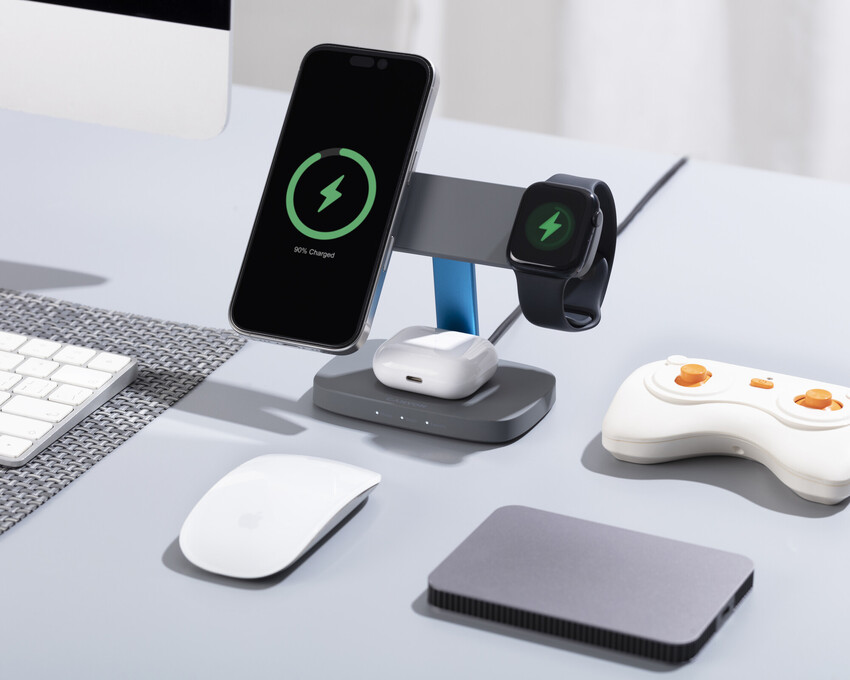
The range of desktop devices people now carry daily has expanded considerably. A hub that could only charge two devices five years ago is no longer enough. When choosing a station, pay attention to the total power output — the combined wattage across all ports — and whether it supports fast-charging standards like USB Power Delivery or Quick Charge. Canyon produces several charging hubs designed with exactly this kind of multi-device reality in mind, offering compact units that handle five or six devices without turning into a tangle of their own.
Beyond the charging hub itself, cable organisation plays a supporting role. Velcro ties, under-desk cable raceways, and adhesive cable clips are inexpensive and make a dramatic visual difference. Grouping cables together and routing them down the back of the desk keeps the surface free of the visual noise that contributes to that feeling of low-level chaos.
The Tools Your Hands Touch All Day
The mouse and keyboard are the two pieces of hardware your hands are in contact with for the majority of your working time. If they are causing discomfort, that discomfort accumulates across hours, days, and weeks. Most standard keyboards and mice are functional — but they are designed for simplicity and low cost, not for the anatomy of your hand and forearm.
An ergonomic mouse is shaped to encourage a more neutral hand position. The most obvious variant is the vertical mouse, which holds your hand in a handshake-style grip rather than lying flat on the surface. This eliminates the forearm rotation that a standard mouse requires and significantly reduces strain on the wrist tendons. There are also contoured mice with thumb rests, side buttons for extra shortcuts, and textured grips that reduce the grip pressure you unconsciously apply during long sessions. Canyon offers ergonomic mice in this category, including models designed for extended use with soft-touch finishes and adjustable DPI for precision work.

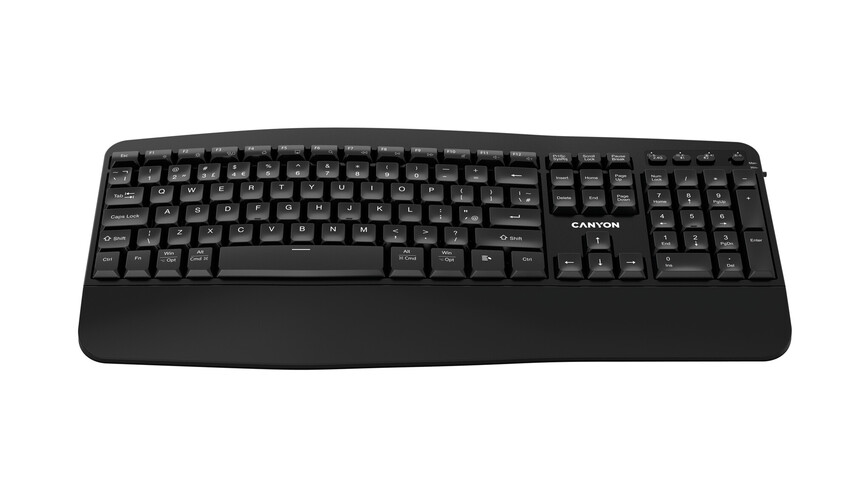
An ergonomic keyboard typically features one of two designs: split, where the two halves of the keyboard sit at shoulder-width apart to keep your wrists aligned with your forearms; or curved, where the keyboard bows slightly outward to achieve a similar effect in a single unit. Many include a built-in wrist rest or wrist pad, which supports the underside of the wrist and prevents it from bending sharply upward during typing. If you type for several hours a day, the fatigue difference between a standard keyboard and a well-designed ergonomic one is noticeable within a week of switching.
One thing worth noting: if you switch to a significantly different keyboard layout or grip style, there is an adjustment period. Your typing speed may dip initially before recovering. That is normal and does not indicate a problem with the device.
Video Calls and the Camera Gap
Remote work and hybrid setups have made the webcam one of the most consequential pieces of desk hardware — and yet it is consistently the most neglected. Most laptop cameras are positioned at the bottom of the screen or in a narrow bezel, produce grainy footage in anything other than ideal lighting, and capture audio from a microphone located far from your mouth.
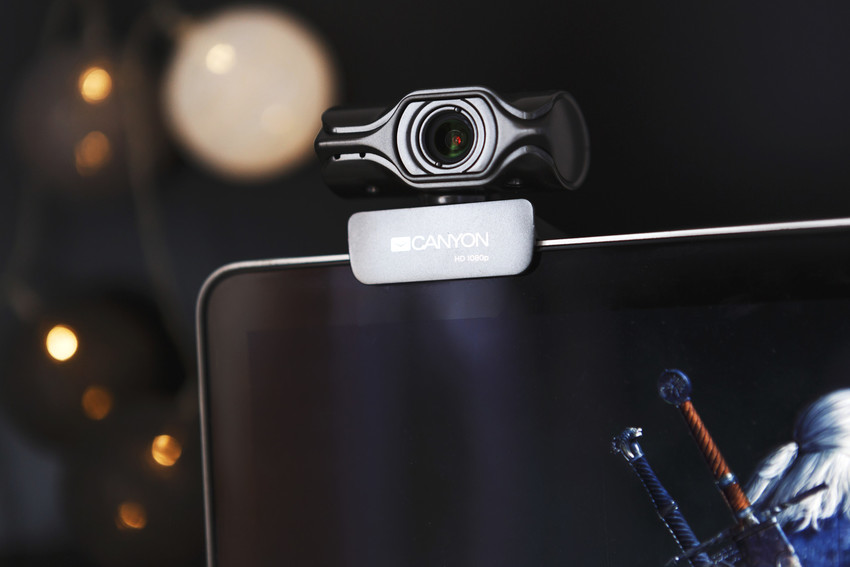
If video calls are a regular part of your week, investing in a high quality webcam is one of the clearest improvements you can make to your professional presence. The differences that matter most are resolution (1080p is the practical standard for most purposes; the improvement from there to 4K is more subtle in real-world conditions), low-light performance (so you do not appear washed out or shadowed when your background is brighter than your face), and the quality of the built-in microphone.
A wide field of view is useful if you want to show a whiteboard, share a co-worker in the same space, or simply move around without disappearing from frame. A narrow field of view keeps the background out of shot, which can be an advantage in a cluttered room. Some webcams offer an adjustable field of view so you can choose depending on the call. Canyon produces webcams across a range of price points that address these practical needs — including models with built-in privacy covers, ring lights for consistent illumination, and noise-filtering microphones.
Placement matters as much as the camera itself. A webcam mounted at the top of your monitor puts you at eye level with your camera, which is the most natural angle for conversation. If the camera sits lower — on a desk stand, for example — you end up looking down at it, which is unflattering and can make the conversation feel slightly off-balance. A monitor-clip mount is the most common solution and works with virtually all external webcams.
Arranging the Surface for Comfort and Efficiency
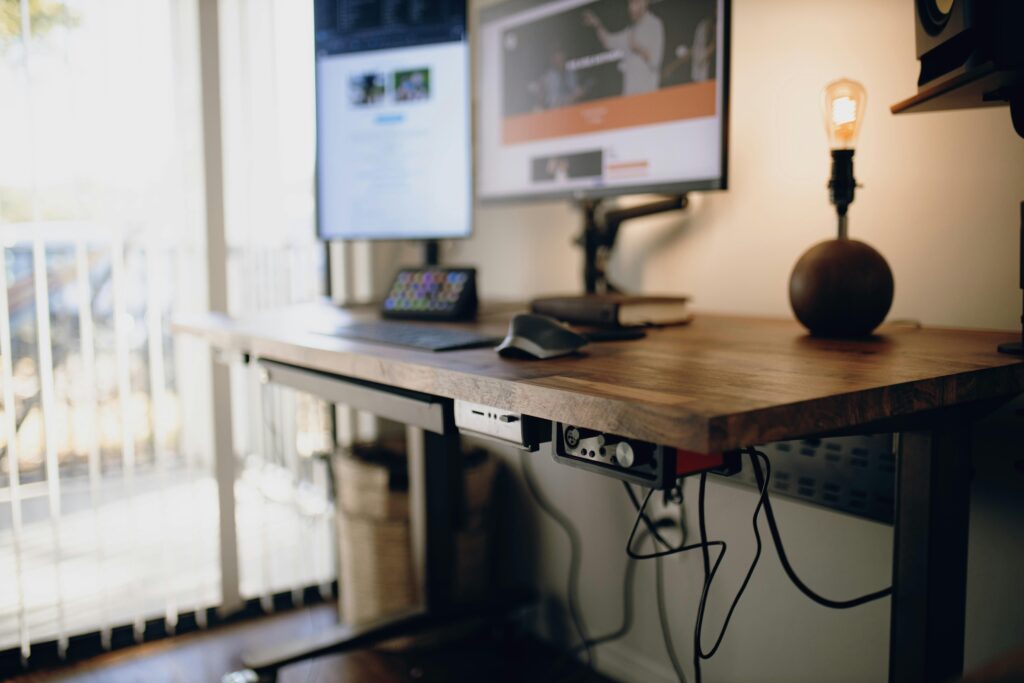
Once the key hardware is in place, the arrangement of your desk makes a significant difference to how well it all works together. Thinking through how to make desk look better is often the starting point, but the more useful framing is: how do I arrange this surface so that I am comfortable and can find what I need without thinking about it?
The most important starting point is the monitor. Its top edge should sit at approximately eye level, which means most people need to raise it slightly from its default position. A monitor riser or adjustable arm achieves this cleanly. The screen should be about an arm’s length away from your eyes — close enough to read clearly without leaning in, far enough to prevent eye strain.

Knowing how to arrange a desk for physical comfort continues with the keyboard and mouse. These should sit at a height that allows your elbows to stay close to your body, with your forearms roughly parallel to the floor. If your desk is not height-adjustable, a keyboard tray mounted under the desk surface can bring them down to the right level. Your feet should sit flat on the floor, and your lower back should be supported by your chair. These are not complicated ergonomic targets — but they are the ones most consistently ignored.
From there, the principle is proximity: the things you use most often should be nearest to hand. A notebook, a pen, a phone — these should sit within the natural sweep of your arm without requiring you to lean or stretch. Desktop accessories like small organiser trays, cable channels, and a monitor riser with built-in storage compartments can keep frequently-used items accessible without creating visual clutter.
Lighting, Air, and the Environment Around Your Desk
The immediate surface of your desk is not the only thing that affects how you work. Lighting plays a larger role than most people initially expect. Poor lighting causes eye strain as your eyes constantly adjust between a bright screen and a dimly lit room. Glare — particularly from sunlight hitting your screen directly — forces you to squint or reposition yourself, both of which create tension in the eyes and neck.
The ideal desk lighting setup involves a source of light in front of you rather than above or behind. An adjustable desk lamp with variable colour temperature lets you tune the light to the time of day: warmer tones in the morning and evening, cooler tones during peak working hours. If you are on video calls regularly, the same front-facing lamp also improves how you look on camera — your face is evenly lit rather than shadowed from above or silhouetted against a bright window behind you.

Air temperature and fresh air have a measurable effect on focus as well. A stuffy room with high CO2 levels from inadequate ventilation causes drowsiness and reduced concentration. This is not something you can fix with a gadget, but it is worth noting: if you find yourself losing focus in the afternoon despite a well-organized desk and good lighting, opening a window may help more than you expect.
Building the Setup Gradually
The most practical advice for anyone starting to think seriously about their workspace is this: do not try to fix everything at once. Pick the single biggest friction point — the thing that most regularly interrupts or frustrates you — and address that first. For most people, that is either the cable chaos (solved by a charging hub and basic cable management), the physical discomfort (solved by ergonomic input devices), or the video call quality (solved by an external webcam).
Each of those changes is relatively self-contained and does not require you to overhaul everything else. A good desk setup grows organically over a few months as you notice what is working and what is not. The accessories that matter most are the ones you interact with directly: the mouse in your hand, the keyboard under your fingers, the camera in front of you, and the desk surface you look at for hours each day.
Canyon offers a range of accessories that cover these core needs — charging hubs, ergonomic peripherals, webcams, and cable management solutions — at various price points, which makes it practical to build up the setup in stages without making a large single investment. Whether you start with a wireless charging pad or a vertical mouse, the principle is the same: every improvement that reduces friction or discomfort is time and energy saved across every working day.
A good workspace does not need to be expensive or elaborate. It needs to be thoughtful — arranged with an awareness of how you actually work, what you actually use, and what is actually getting in your way.